Alarm Auto Configuration
Auto Rules are comprised of an action, a time, and a rule condition.
Auto Action is composed of those actions that will automatically occur when certain rule conditions are set.
Action Time (sec) determines when the auto actions start evaluating and processing the alarm. A value of 0 indicates that the CAS should evaluate the action immediately, based on the rule conditions, before adding the alarm at all in the alarm view. (The point’s alarm condition will not even appear in the alarm view, but it will be recorded in the alarm history with a timestamp.) A value of 1 indicates that the action will occur within a second and the point’s alarm condition will appear or not (depending on established conditions) in the alarm view.
* Conditions establish those conditions that must be met before the auto action begins processing the alarm.
To access the Alarm Auto Conditions dialog box, click conditions set under Rule Conditions in the Alarm Auto Configuration dialog box.
Example
The following auto configuration has set up a rule whereby any point’s alarm condition when it has a low alarm priority of less than 20 that alarm will be automatically acknowledged. Since Action Time is 0, the alarm will not appear in the CAS alarm view at any time. (There will, however, be a record of the alarm event written in alarm history.)
|
Alarm Auto Configuration |
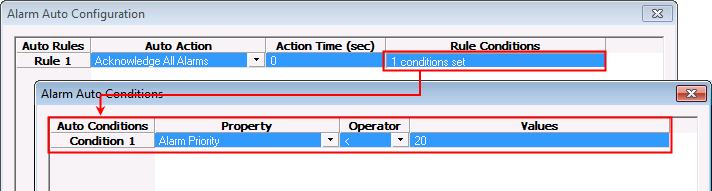
You can have auto action conditions that acknowledge alarms and clear and force clear alarms. All Auto Conditions for a given Auto Rule must be met for the rule to have any effect.
Characters
| Characters | Use |
|---|---|
|
Semi-colon (;) |
Must be used to separate values in a list. For instance, if you want to filter alarms by listing facilities, you would use a semicolon to separate the facilities (for example, FAC1; FAC2; FAC3). |
|
Single character (?) or Multi-character (*) wildcard |
Use these to search for words with variable characters in text. The asterisk is recommended to avoid spelling errors and capitalization mismatches. |
Operators
These operators are used in the Alarm Auto Configuration dialog box to complete an auto action with a rule condition.
| Operators | Description |
|---|---|
|
= |
An absolute match between a text or numeric value and a compared value. Use the equals sign for text strings, such as Facility_ID, Site.Service::Facility.UDC, etc. Use wildcards if needed. |
|
<> |
Either a text or numeric value do not match. Use the not equal sign for text strings, such as Facility_ID. Use wildcards if needed. |
|
> |
Indicates that a numeric value is greater than another compared value. |
|
>= |
Indicates that a numeric value is either equal to or greater than another compared value. |
|
< |
Indicates that a numeric value is less than another compared value. |
|
<= |
Indicated that one numeric value is either equal to or less than a compared value. |
Condition Values
- All auto condition property text values are case sensitive. As such, for the Facility ID, you must enter the exact spelling, including capitalization.
- Depending on the condition Values, some will have a choice of Yes or No, or Set or Reset.
These are the auto action conditions that you can define:
| Auto Conditions Property | Description |
|---|---|
|
Facility ID |
This auto condition is based on the facility ID for a potential alarm event. Note that the text value in the Values column must match exactly the Facility ID. Wildcards can be used. This auto condition property can be used for PNT alarms. Use the equals (=) and not equals (<>) signs. |
|
Alarm Category |
This auto condition is based on the alarm category and only applies to a PNT alarm. This is the entry from the TRS. Use the equals (=) and not equals (<>) signs. |
|
Alarm Priority |
This auto condition is based on the alarm priority; i.e., any number from 0 to 99. You can use greater than (>) or less than (<) or unequal sign (<>) or in combination. (=> or =<). This auto condition is for PNT alarms. |
|
Alarm Priority Highest |
This auto condition is based on the highest alarm priority (0-99). You can use greater than (>) or less than (<) or unequal sign (<>) or in combination. (=> or =<). This auto condition can be used for PNT alarms. |
|
Alarm Priority Highest Since Ack |
This auto condition is based on the highest alarm priority since the last acknowledgment. This keeps track of the highest priority for the point, but is reset when the alarm is acknowledged. This auto action condition can be used for PNT alarms. |
|
Alarm Suppression State |
This auto condition is based on the suppression state if it is enabled or not. Value is either Yes or No. This auto condition is for PNT alarms only. Use the equals (=) and not equals (<>) signs. |
|
Alarm Acknowledge |
This auto condition acknowledges the alarm. Select either Yes or No. This auto condition property can be used for PNT alarms. |
|
Set/Reset State |
This auto condition is used to set or reset the alarm. Use the equals sign (=) or not equals (<>) and select either Set or Reset. This auto condition is for PNT alarms. |
Example
Automatic rules can acknowledge all alarms by Facility ID and with an Alarm Category of 20.
To Configure the Service to Auto Acknowledge Alarms (Set, Reset, All)
- Right-click in the alarm view and select Alarm Auto Configuration.
- In the Alarm Auto Configuration dialog box, click Add Rule.
- From the Auto Action list, you can select:
- To acknowledge all alarms, select Acknowledge All Alarms.
- To acknowledge set alarms, select Acknowledge Set Alarms.
- To acknowledge reset alarms, select Acknowledge Reset Alarms.
- In the Action Time, select the number of seconds after the timestamp appears on the alarm.
- Click once in Rule Conditions. Note that entries in Rule Conditions are case sensitive.
- Click Add Condition.
- Select the appropriate item from the Property and Operator lists and enter a corresponding value.
- Add another condition, if desired.
- Click Apply.
- If changes were made, a message appears asking whether or not to save. Click Yes.
You can also have a point returning to a normal alarm state be required to be acknowledged after it has been set or reset. This is done by enabling or disabling Acknowledgment Required on Return to Normal (Reset) in the Alarm Service Advanced Configuration dialog box. This feature is accessed through the Alarm Auto Configuration screen and then clicking Advanced. If you want to have a point’s alarm condition to be required to be acknowledged as it is reset or set back to a Normal point state, keep the Acknowledgment Required on Return to Normal (Reset) enabled.
|
Alarm Service Advanced Configuration Dialog Box |
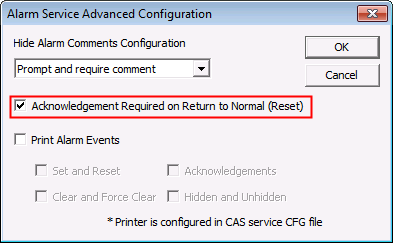
If you do not see expected alarms in the alarm view, always check the auto configuration settings and the filter options.
To Configure the Service to Auto Force Clear Alarms
- Right-click in the alarm view and select Alarm Auto Configuration.
- In the Alarm Auto Configuration dialog box, click Add Rule.
- From the Auto Action list, select Force Clear Alarms.
- In Action Time, select the number of seconds after the timestamp appears on the alarm.
- Click once in Rule Conditions.
- Click Add Condition.
- Select the appropriate item from the Property and Operator lists, and enter a corresponding value. Note that entries in Rule Conditions are case sensitive.
- Add another condition, if desired.
- Click Apply.
- If changes were made, a message appears asking whether or not to save. Click Yes.
To Configure the Service to Auto Clear Alarms
- Right-click in the alarm view and select Alarm Auto Configuration.
- In the Alarm Auto Configuration dialog box, click Add Rule.
- From the Auto Action list, select Clear Alarms.
- In Action Time, select the number of seconds after the timestamp appears on the alarm.
- Click once in Rule Conditions.
- Click Add Condition.
- Select the appropriate item from the Property and Operator lists, and enter a corresponding value. Note that entries in Rule Conditions are case sensitive.
- Add another condition, if desired.
- Click Apply.
- If changes were made, a message appears asking whether or not to save. Click Yes.


